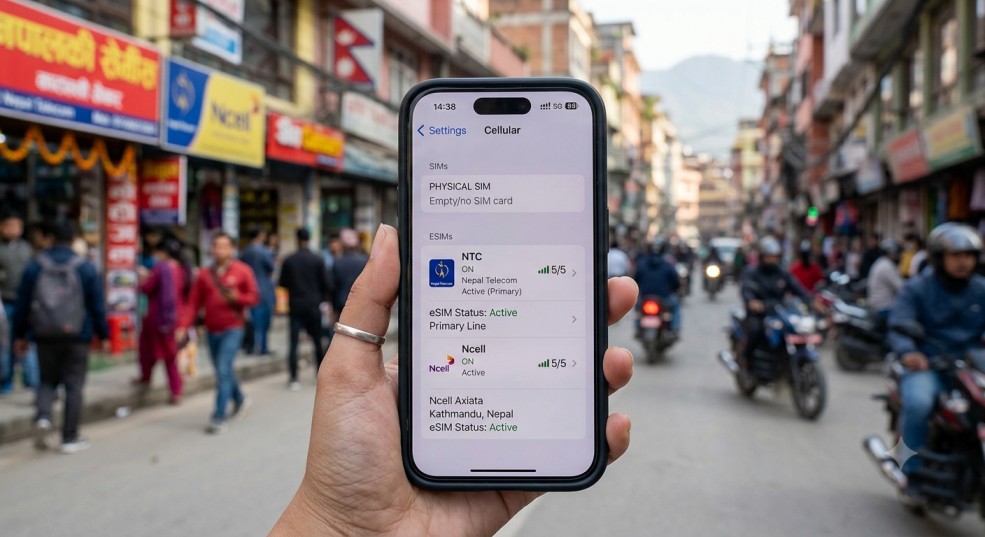
Setting up an eSIM Nepal has quietly become one of the easiest ways to skip the hassle of physical SIM cards. Instead of visiting a shop, waiting in line, and swapping a tiny plastic card every time you switch numbers, an eSIM lets you activate a mobile connection digitally, straight onto a compatible phone.
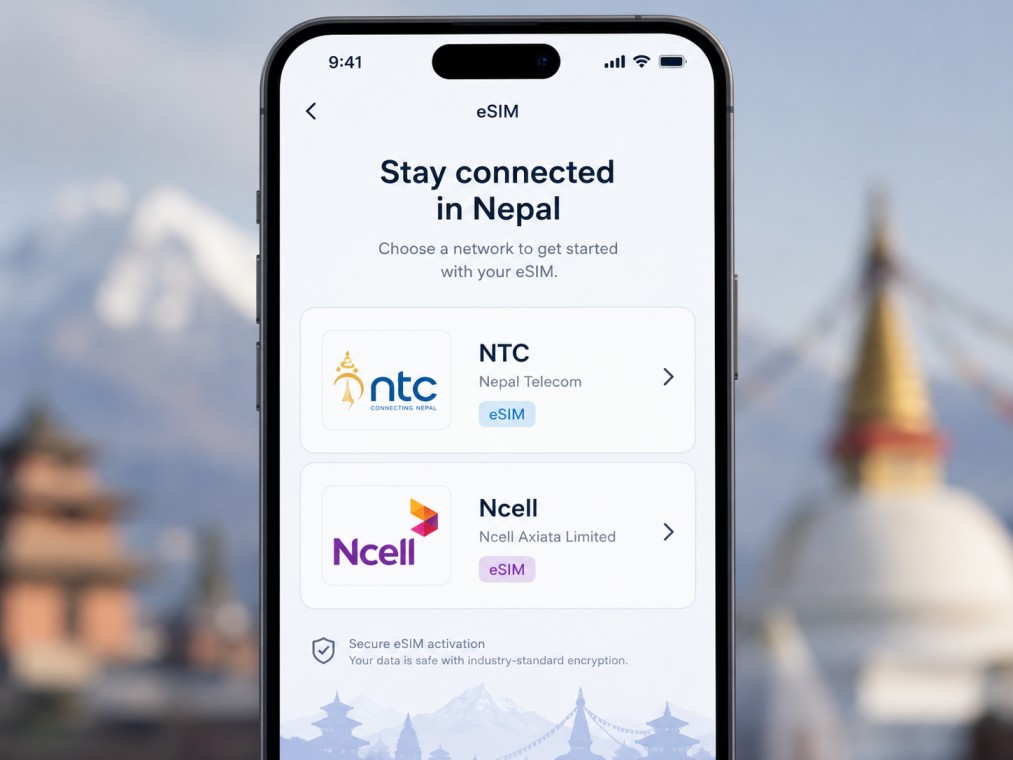
Both of Nepal’s major telecom operators, Nepal Telecom (NTC) and Ncell, now offer eSIM Nepal services. Whether you’re upgrading an existing number or applying for a new one, this guide walks you through the entire process for both carriers, step by step, along with device compatibility checks and troubleshooting tips
Check if your Phone supports eSIM
Before applying for an eSIM Nepal connection with either carrier, confirm that your device actually supports it. Not every phone does.
Dial the compatibility code
Open your phone’s dialer and dial the code: *#06#
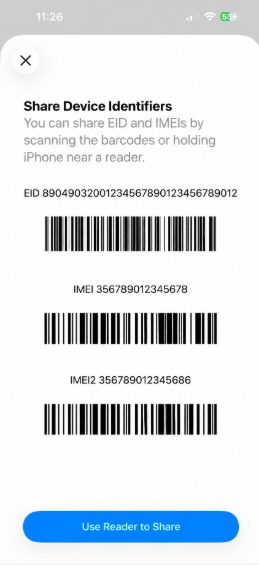
This brings up your device’s identification details. If your phone supports eSIM, you’ll see an EID (Embedded Identity Document) number listed alongside the IMEI. If only IMEI, MEID, or ICCID appear with no EID, your device only supports a physical SIM.
Alternative method: go to Settings > About Phone > Status Information (the exact wording varies slightly by brand) and look for the EID entry there.
Phones commonly compatible with eSIM in Nepal
- Apple: iPhone XS and newer (11, 12, 13, 14, 15, 16, 17 series)
- Samsung: Galaxy S20 and newer, Z Flip 3+, Z Fold 3+, Note 20 FE
- Google: Pixel 4 and newer
If you’ve imported a phone from abroad, it must also be carrier-unlocked. On iPhone, check under Settings > General > About — if it says “No SIM restrictions,” your phone isn’t carrier-locked.
One thing to know if you bought your iPhone 14, 15, or 16 in the US: these models are eSIM-only with no physical SIM tray. They’ll work with NTC or Ncell in Nepal, but the device needs to be MDMS-registered first, or you may run into connectivity issues.
What you need before Applying
- A valid ID: citizenship certificate, passport, national ID, voter ID, or driving license
- An existing NTC or Ncell number, if you’re converting a current SIM to eSIM Nepal
- A minimum balance on your SIM, since the conversion fee is deducted from it (NPR 50 for NTC, and NPR 100 for Ncell)
- A compatible, unlocked device as confirmed above
How to Activate eSIM in Nepal for NTC
Nepal Telecom (NTC) was the first operator to launch eSIM in Nepal, and now offers three ways to get one: fully online, through Khalti, or in person at an NTC counter.
Option A: Activate NTC eSIM Online
- Open the Nepal Telecom app, or visit the official eSIM portal at esim.ntc.net.np
- Enter your 10-digit NTC mobile number and request an OTP
- Enter the OTP sent to your phone via SMS to verify
- Enter your citizenship ID number and issued district for KYC verification
- Take a live photo of your original ID (gallery uploads aren’t accepted) as prompted
- Submit the request and wait for approval, this can take some time
- If your NTC profile doesn’t have an email on file, the system won’t be able to send your QR code, in that case, you’ll need to visit an NTC counter first to get your profile updated before continuing online
- Once approved, you’ll get a notification that your request was accepted.
- Log back into the eSIM portal or app using WiFi, not mobile data, and tap, “Activate My eSIM” to download your QR code, NTC sends it to the email address already registered on your account
If your citizenship ID or issued district can’t be verified automatically, you’ll need to visit an NTC counter to get your profile updated before the online process will work.
Option B: Buy an NTC eSIM Through Khalti
If you already use the Khalti digital wallet, you can purchase a new NTC prepaid eSIM without visiting an office.
Note – When you buy an eSIM through Khalti, you’re only getting a brand new NTC mobile number not converting your existing physical SIM number into an eSIM.
- Open Khalti and search for “E-SIM”
- Select the NTC Prepaid eSIM option
- Fill in your full name, parents’ names, and date of birth
- Enter your document number (citizenship, passport, driving license, voter ID, or national ID)
- Upload front and back photos of your ID plus a live photo
- Add your contact number and email address
- Complete the purchase for Rs. 90
- A Khalti/NTC representative will contact you within 24 hours to complete verification and finish the process
- You’ll receive your eSIM QR code via the app or email once everything is verified
Option C: Visit an NTC Counter
- Find your nearest Nepal Telecom office or counter
- Bring your original citizenship ID (or passport/national ID) along with a photocopy (both sides)
- If you’re converting an existing SIM to eSIM Nepal, the original registered SIM owner must be present in person someone else can’t do this on your behalf
- Fill out the eSIM request form and submit it along with your ID photocopy
- Staff will confirm your device is eSIM-compatible (usually by checking for the EID via ‘*#06#’
- Pay the applicable fee Rs. 50 for existing customers converting, Rs. 90 for a new eSIM
- A staff member will activate your eSIM on the spot usually within 3 to 5 minutes
- You’ll receive a printed QR code, ICCID number, and activation code keep this safe in case you switch phones later uses for eSIM Nepal
NTC eSIM Nepal Fees
- Existing user conversion: around Rs. 50
- New eSIM: around Rs. 90
Don’t Forget to Enable VoLTE
After activation, dial *444*2# to enable VoLTE on your NTC eSIM. Then go to your phone’s network settings, turn VoLTE on, and restart your device. Skipping this step is one of the most common reasons people report no signal right after activating.
How to Activate eSIM in Nepal for Ncell
Ncell launched its eSIM Nepal service shortly after NTC, and made the upgrade process free for existing users. You can request it by SMS, through an online form, or in person
Option A: SMS-Based Upgrade (Existing Numbers)
Existing Ncell users can upgrade by sending a free SMS with their citizenship number and email ID to 17125. The SMS itself doesn’t cost anything, but an Ncell representative will call you within a few hours to carry out KYC verification before issuing the QR code and the standard Rs. 100 eSIM conversion fee still applies, deducted from your SIM balance after verification.
Option B: Online Conversion Form
- Fill out the Ncell eSIM Nepal conversion request form with your mobile number and document details
- Provide your consent for the conversion fee (Rs. 100) to be deducted from your balance
- If the form is incomplete or partially filled, it won’t be processed at all, you’ll be notified via SMS and have to resubmit from scratch
- If the form is complete, Ncell will call you back to carry out KYC verification
- You’ll need to follow the instructions given during that call to complete the conversion
- Once everything is verified, you’ll receive your QR code to complete setup
Option C: Visit an Ncell Centre
- Bring a valid ID (citizenship, passport, or national ID) to your nearest Ncell Centre
- Request the eSIM upgrade in person
- Your SIM will be upgraded after document verification
For Corporate or Company-Owned Numbers
If your Ncell number is registered to a company, you’ll need a request letter on official letterhead, either submitted in person at an Ncell Centre or sent as a scanned copy to your Ncell account manager.
Using Ncell eSIM Nepal While Traveling
Ncell eSIM Nepal also works abroad if roaming is activated. Dial *17129# to turn on roaming before your trip.
How to Scan the QR Code and Finish Setup
On iPhone
- Go to Settings > Cellular (or Mobile Data)
- Tap Add eSIM, then Use QR Code
- Scan the QR code you received for eSIM Nepal
- Follow the prompts to label the plan and set it as primary or secondary
On Samsung
- Go to Settings > Connections > SIM Manager
- Tap Add eSIM under the eSIMs section
- Tap Scan QR Code and scan the code provided for eSIM Nepal
- Follow the on-screen steps to complete activation
On Pixel and Other Android Phones
- Go to Settings > Network & Internet > SIMs
- Tap Add SIM or Download a SIM instead
- Scan the QR code, or enter the activation code manually if scanning fails
Keep the original QR code, ICCID, and activation code stored somewhere safe (a notes app or printed copy works). You’ll need them again if you ever switch to a new phone.
eSIM vs Physical SIM: Is It Worth It in Nepal?
An eSIM Nepal connection makes the most sense if you travel often, use dual numbers, or simply want to avoid the wear and tear of swapping physical cards. It’s also a cleaner option if your phone doesn’t have a dedicated SIM tray.
- No physical card to lose, damage, or swap
- Easier to manage multiple numbers on supported phones
- Convenient for international travel with roaming
- Cannot be moved to a phone that doesn’t support eSIM Nepal
- Losing your QR code makes recovery more of a hassle, store it safely
- No bonus data or talktime is given for converting an existing SIM to eSIM
Troubleshooting Common eSIM Nepal Activation Problems
No Service After Activation
Double-check that VoLTE is switched on in your network settings, then restart your device. This resolves the majority of “no signal” cases after eSIM Nepal activation.
eSIM Option Not Showing in Settings
This usually means your device isn’t eSIM-compatible after all, or it’s carrier-locked. Re-run the *#06# check from as mentioned in the article above to confirm.
Lost Your QR Code
For NTC, contact customer service at 1498 or visit an NTC office to recover your eSIM profile. For Ncell, call 9005 (or 9809005000 from another network) to report the issue and block your SIM if needed, but you’ll still need to visit your nearest Ncell Centre in person with your original ID for biometric verification to fully recover your eSIM profile
Lost or Stolen Phone
Contact your carrier immediately to block the eSIM, then reinstall it on a new device using your saved QR code or activation details.
FAQ’s About eSIM Nepal
Can I use both an eSIM and a physical SIM at the same time?
Yes. Most eSIM Nepal compatible phones support dual SIM functionality, letting you run an eSIM and a physical SIM together, though only one is usually active for calls at a time.
Can I switch back from eSIM to a physical SIM?
With NTC, you’ll need to visit an office and submit a request to revert. Ncell allows conversion back to a physical SIM as well, for a standard fee.
Is eSIM activation free in Nepal?
Not entirely. NTC charges roughly Rs. 50 to Rs. 90 for eSIM Nepal depending on whether you’re converting or getting a new number, while Ncell charges Rs. 100 for conversion.
Will my carrier-locked or imported phone work with a Nepali eSIM?
No. Your device must be carrier-unlocked. Check under Settings > General > About on iPhone, or your carrier settings on Android, to confirm.
Does eSIM work while traveling abroad?
Yes, as long as roaming is activated. For Ncell, dial *17129# before your trip to enable it.
What happens if I get a new phone?
You can reinstall your eSIM on a new device using the same QR code, ICCID, or activation code you received during setup as long as you kept a copy
Final Thoughts
Getting an eSIM Nepal connection with NTC or Ncell is more straightforward than it used to be, especially now that both carriers offer online options alongside in-person activation. The most important steps are confirming your phone is compatible, keeping your QR code safe, and enabling VoLTE right after activation to avoid signal issues.
Looking to pair your new eSIM with a phone upgrade? Check out our tech review for affordable devices
For official information straight from the source, you can also refer to: